AxilDB User Manual
A guided reference for collection setup, accession records, photos, husbandry, transfers, server management, and everyday recordkeeping.
Contents
Getting Started
AxilDB organizes botanical accession records into collections. Each collection keeps its own plant definitions, plant specimens, photos, propagation history, bloom records, husbandry, care queue, follows, reminders, transfers, and administrative history, while site-level validated definitions provide reviewed reference records that collections can reuse.
How it is used
- Sign in or create a viewer account from the app home page.
- Choose a collection from the collection switcher in the sidebar or mobile menu.
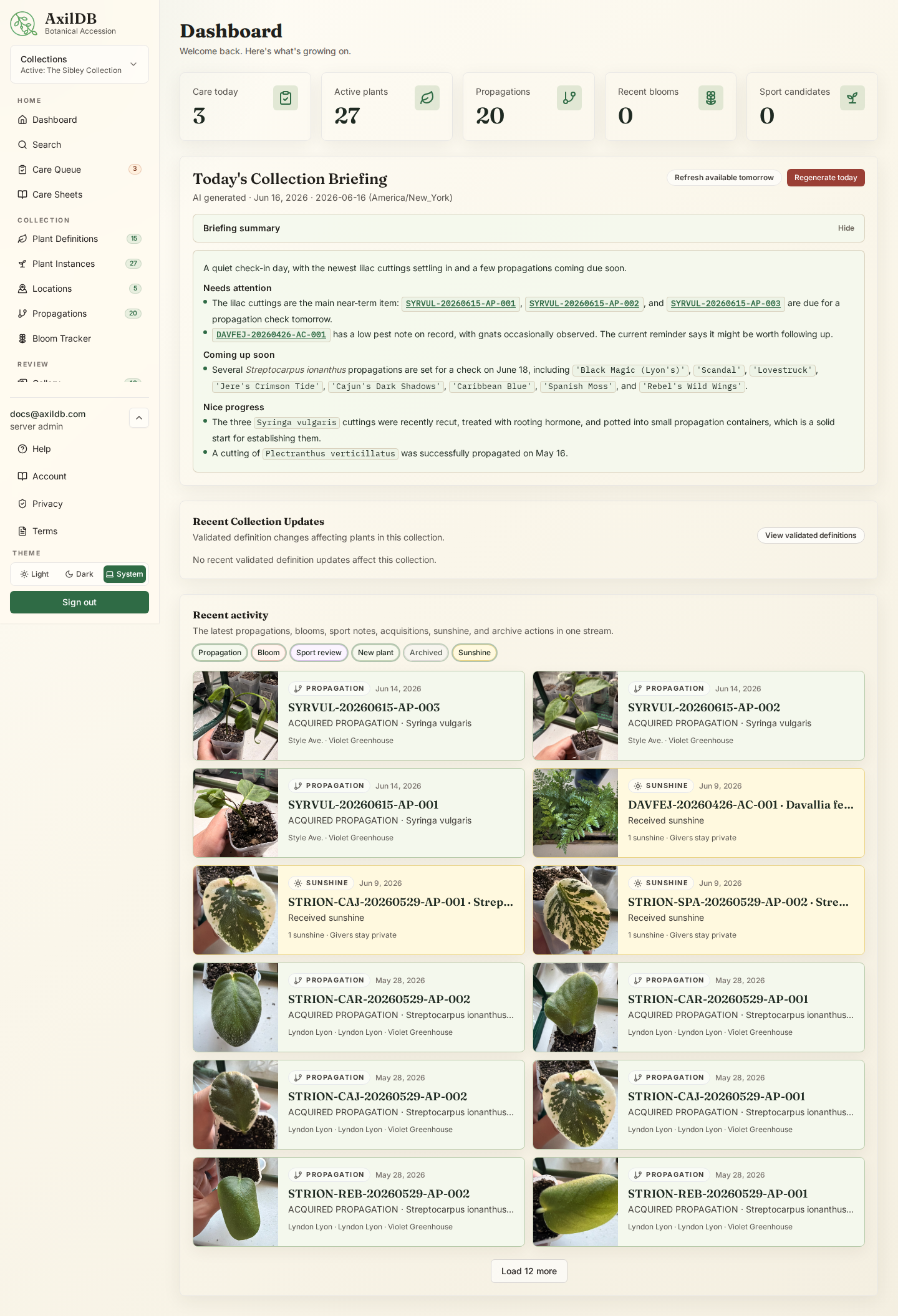
- Use Dashboard for recent activity, high-level counts, care-at-a-glance, and quick links into the collection.
- Use Search when you know a plant ID, name, cultivar, alias, location, source, note, or other record text.
Notes
- Public collections can be browsed without signing in, but following records requires collection membership.
- Private collections require an active membership before records are visible.
Accounts, Email, and Security
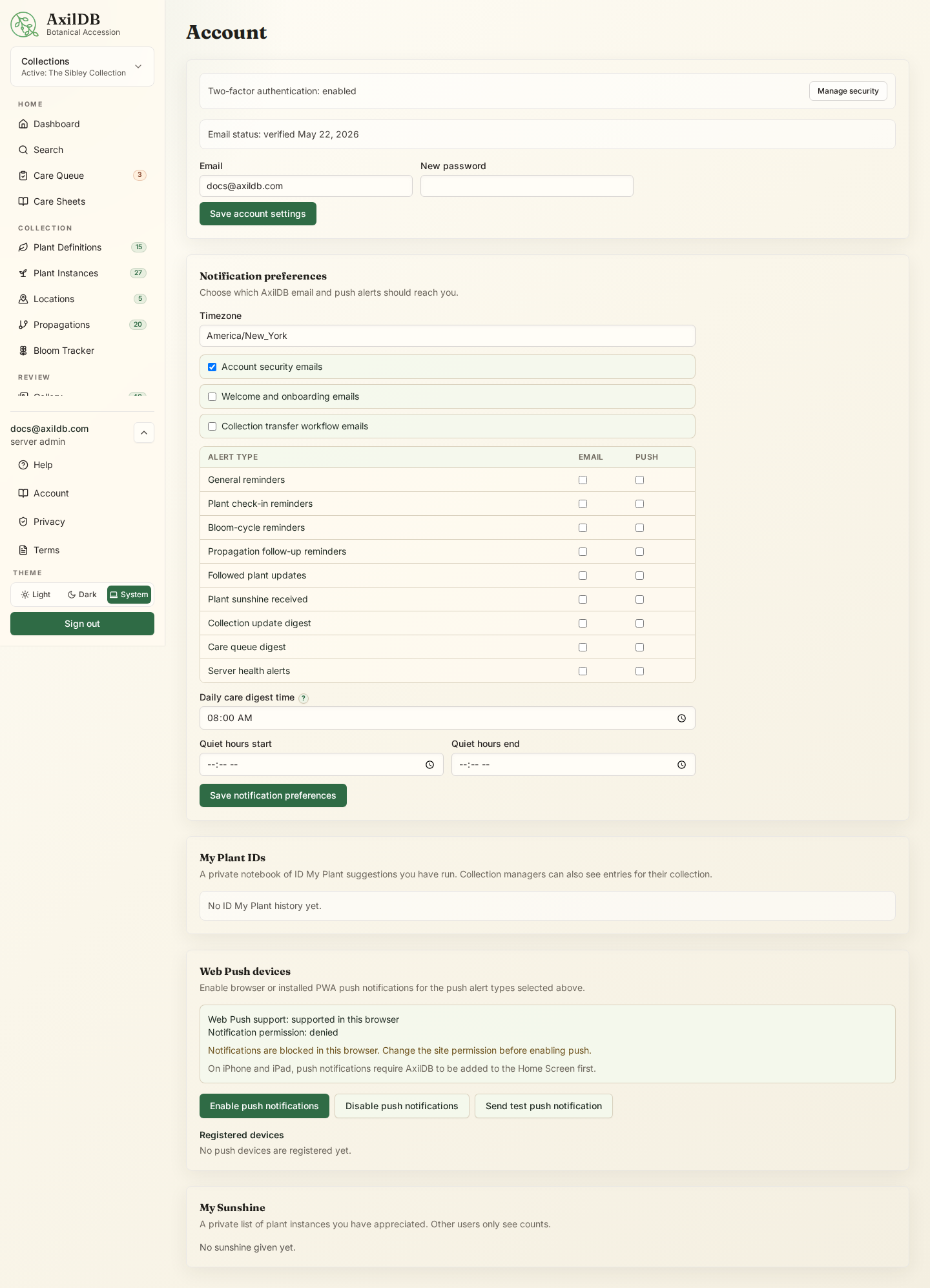
Account settings manage your email address, password, email verification, two-factor authentication, recovery codes, measurement units, and notification preferences.
How it is used
- Open Account from the sidebar footer.
- Update your email or password from the Account page.
- Use Resend verification when your email status is not verified.
- Open Account Security to set up authenticator-app verification codes and recovery codes.
- Under Units, choose Celsius or Fahrenheit for temperature and lux or foot-candles for measured light, then save. Forms, compatibility panels, and account-scoped exports use those choices.
- Use Forgot password or Magic login from the login page when needed.
- Review My Sunshine for plant instances you have appreciated. Optional plant-sunshine email and push notifications default off and never reveal who gave sunshine.
- Review image upload prompts when AxilDB asks you to keep, remove, or continue with a no-plant or uncertain-plant image.
Notes
- AxilDB stores temperature canonically in Celsius and measured light in lux. Changing Units changes input and display only; it does not rewrite stored records or affect compatibility calculations.
- Public pages and shared system output use Celsius and lux unless a signed-in user context is available. Humidity and NPK remain percentages, while freeform manufacturer dose and pot-size text is preserved exactly as entered.
Warnings
- Server admins, collection managers, and collection gardeners must complete two-factor authentication before using privileged tools.
- Store recovery codes somewhere safe. They are intended for account recovery when your authenticator is unavailable.
Collections and Membership
Collections are tenant-like workspaces. Records in one collection are isolated from records, locations, suggestions, photos, search results, and usage stats in other collections.
How it is used
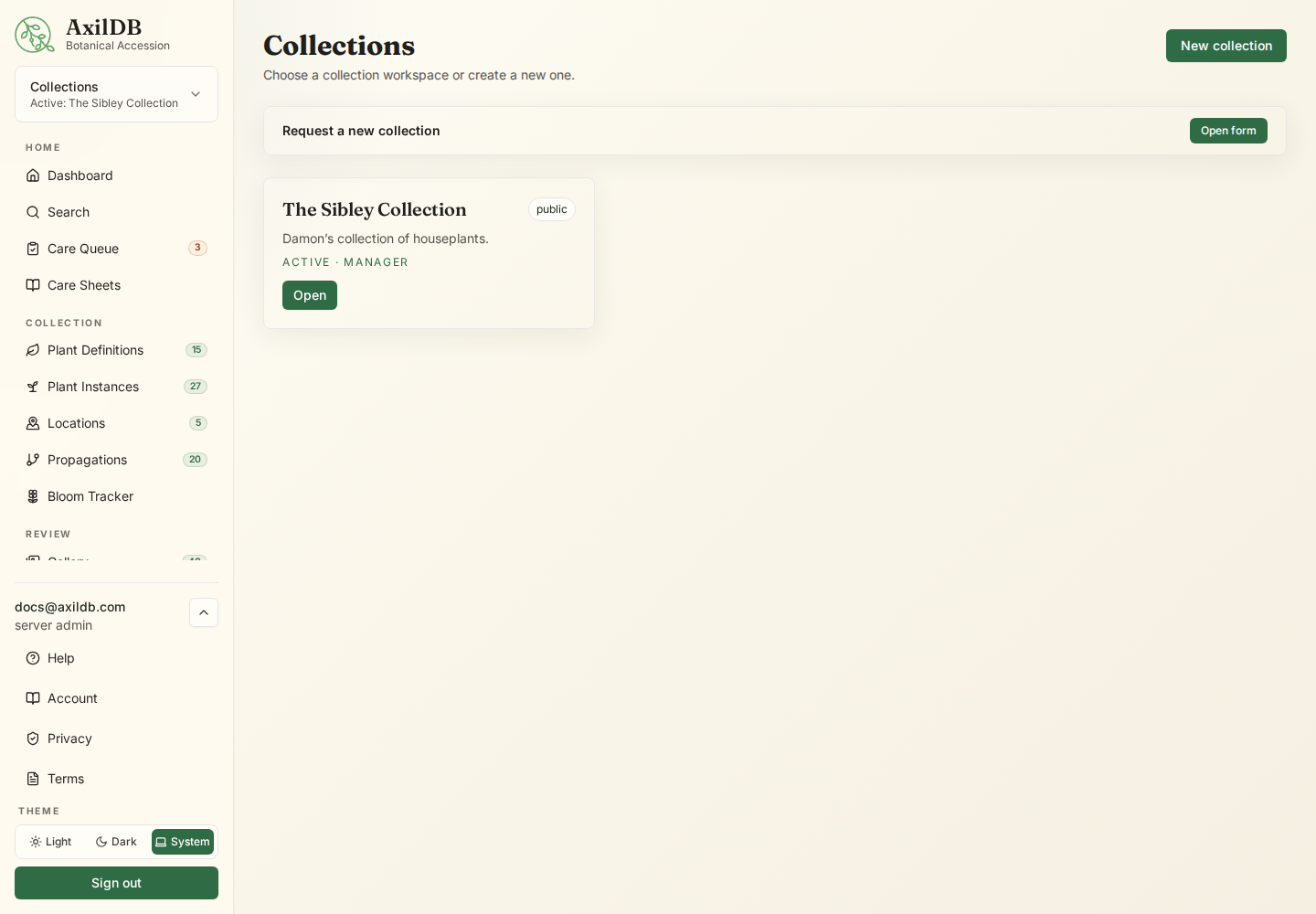
- Use Manage collections from the collection switcher to view collections available to you.
- Request access to a public or known collection when you need membership.
- Request a new collection if you need a workspace of your own. A server admin reviews and approves collection requests.
- Collection managers can edit collection settings, approve members, and invite users by email.
Notes
- Collection roles are Viewer, Logger, Gardener, and Manager.
- Server admins manage sitewide settings, collections, users, backups, and health checks from Server Management.
Plant Definitions
Plant definitions describe the taxon, cultivar, aliases, reference links, type image, and definition-level husbandry for a kind of plant.
How it is used
- Open Plant Definitions from the sidebar.
- Use Add plant definition to create a new definition.
- Enter genus, species, cultivar, author citation, taxonomic authority, reference URLs, aliases, description, and notes. If the identity is unresolved, enter a Provisional / working taxon instead.
- Use AI draft for a short botanical description, Magic fill to draft taxonomy metadata and aliases, or ID My Plant to suggest an identification from your description, known names, and optional image when AI is enabled for the collection.
- When a Magic Fill-managed field already contains information, choose Fill Missing Only to preserve it, Replace All Fields to replace only that tool’s managed fields, or Cancel. Empty forms proceed directly, and every draft still requires review and an explicit save.
- Use ID History from the Plant Definitions header to review past ID My Plant suggestions for the collection and create a new plant definition prefilled from a saved result.
- Open Validated from the Plant Definitions header to browse reviewed site-level definitions that can be used by any collection.
- Managers can nominate a local definition for validation from the edit page. Server admins review nominations from Server Management.
- Managers can dispute a validated definition or create a local copy for selected specimens when the collection needs an independent definition.
- Managers and gardeners can review Recent Collection Updates on the dashboard when validated definition edits affect specimens in the collection.
- Upload a plant definition type image when the representative image comes from a reference source rather than your collection.
- Use Copy on an existing definition to start a similar definition without copying cultivar-specific fields or images.
- Use Share Definition when you have an active collection connection and want another collection to review and copy the definition.
- Use Plant Tags to maintain reusable collection traits, then select multiple active tags in a Plant Definition form. Search can match any or all selected tags.
- Review Magic Fill tag suggestions separately from taxonomy fields. Existing tags and proposed private tags require explicit selection, and proposed tags require a second creation confirmation.
Notes
- Species values are normalized to lowercase on submission.
- A provisional taxon takes precedence as the displayed name and marks the definition as needing identification review. AxilDB retains the genus/species working placement for plant ID generation.
- Clear the provisional taxon only after entering the identified genus and species. Provisional definitions cannot be nominated as site-level Validated Definitions.
- Author Citation records the formal botanical author citation, such as “(L.f.) R.Br.”
- Aliases are useful for old taxonomy, trade names, common names, shorthand, and misapplied labels.
- Validated definitions are site-level records, not collection-owned records, so collection deletion does not remove approved validated definitions.
- Your own ID My Plant results also appear under Account → My Plant IDs, even if you did not create a plant definition immediately.
- Collection Update Digest is separate from care reminders. It covers validated definition reference changes for definitions currently used by the collection.
- Use specimen-level husbandry overrides for local care differences before detaching from a validated definition.
- Tags belong to local Plant Definitions, not Plant Instances or site-level Validated Definitions. Archived tags remain visible historically but are not offered for new assignment.
- Tag icons use AxilDB’s curated botanical icon set so they render consistently across devices.
Warnings
- AI output is a draft. Review reference URLs, aliases, conservation notes, and toxicity before relying on them.
- ID My Plant sends only the description, known names, and selected image to OpenAI. It does not send member emails or unrelated records, and it does not save the suggested definition automatically. The result is saved to private user and collection-manager history.
Acquisition Pipeline
The Acquisition Pipeline tracks pre-accession research, wishlist intent, nursery sightings, price history, and purchases on plant definitions before or alongside owned plant specimens.
How it is used
- Open Acquisitions from the sidebar.
- Open Wishlist for filterable acquisition cards or switch to the compact Shopping view. Select several definitions and choose Acquire selected to review one shared acquisition batch before any records are created.
- Download the wishlist as CSV or a branded PDF using the same collection-scoped data and public privacy rules.
- Use Add acquisition target to create a research or wishlist definition with status, priority, target price, desired specimen size, desired location, preferred sellers and sales channels, other vendor notes, interest notes, and research summary.
- Filter by status, search researched plants, and sort by priority, recent observations, price, or name when shopping or planning.
- Add Research Journal entries for chronological notes, URLs, citations, and the reasoning behind the target.
- Use Seen at... to record the seller, sales channel, observed price, size, condition, availability, and notes.
- Open Provenance to create reusable upstream sources, sellers, sales channels, and manager-defined sales-channel types.
- On an observation, select who the plant came from and how it was sold or transferred. Use Acquire from this observation to prefill known provenance, price, and specimen size.
- Use Acquire to create a permanent acquisition record, add an ordered source chain with roles, and optionally create one or more Plant Instances with generated IDs.
- Enter the supplied acquisition label during acquisition when the nursery, seller, or source label should be preserved on each created specimen.
- Choose whether an acquisition fulfills the intent, keeps it active, or marks it as a repeat-purchase target.
Notes
- Acquisition status is stored on the Plant Definition and remains editable even after specimens exist, so owning one plant does not automatically remove future acquisition intent.
- Acquisition Records are permanent historical records and can represent one plant, many plants, or a purchase/reservation that does not create Plant Instances yet.
- Acquisition labels belong to Plant Instances, not Plant Definitions, because specimens of the same taxon may arrive under different labels.
- Sources identify upstream origin. Sellers identify who actually sold or transferred the plant. Sales Channels identify how that seller transacted, such as a website, marketplace profile, retail store, nursery, show, social account, or auction.
- Seller ratings, experience notes, and sales-channel addresses are collection-private. Source, seller, and sales-channel public visibility each default off.
- The Provenance cleanup panel merges duplicates, converts older outlet records with an affected-record preview, and only offers permanent deletion for records with no references.
- Purchase History is the canonical acquisition browser. Wishlist and research records remain planning tools.
- From a Plant Instance, use Manage acquisition to edit its date, supplied label, seller, sales channel, source chain, price, size, and notes. Saving creates a linked acquisition record automatically when an older specimen does not have one.
- Archived provenance records remain visible on historical acquisitions but are not offered for new records. Managers can merge duplicates without breaking dependent history.
- Collection Settings includes Acquisition visibility. It defaults to Private; public collection visitors only see the pipeline when managers explicitly set it to Public.
- Managers can enable individual public wishlist fields. Every field is off by default, and exact locations, maximum prices, private journals/notes, distributor experience data, and non-public observations stay private.
- Mark an observation Public only when its date, price, size, condition, and availability are appropriate for a public summary. Distributor details and observation notes remain private.
- ID My Plant history can add an existing local definition to the Wishlist. Unmatched results open the normal definition review form first, and nothing is saved automatically.
- Magic Fill can show a sourced acquisition-planning draft and compare general requirements with Location Environment Profiles. Choose which supported fields to apply; it never changes wishlist status or priority.
- Plant ID hover previews include acquisition status and target details when the linked plant definition has acquisition intent.
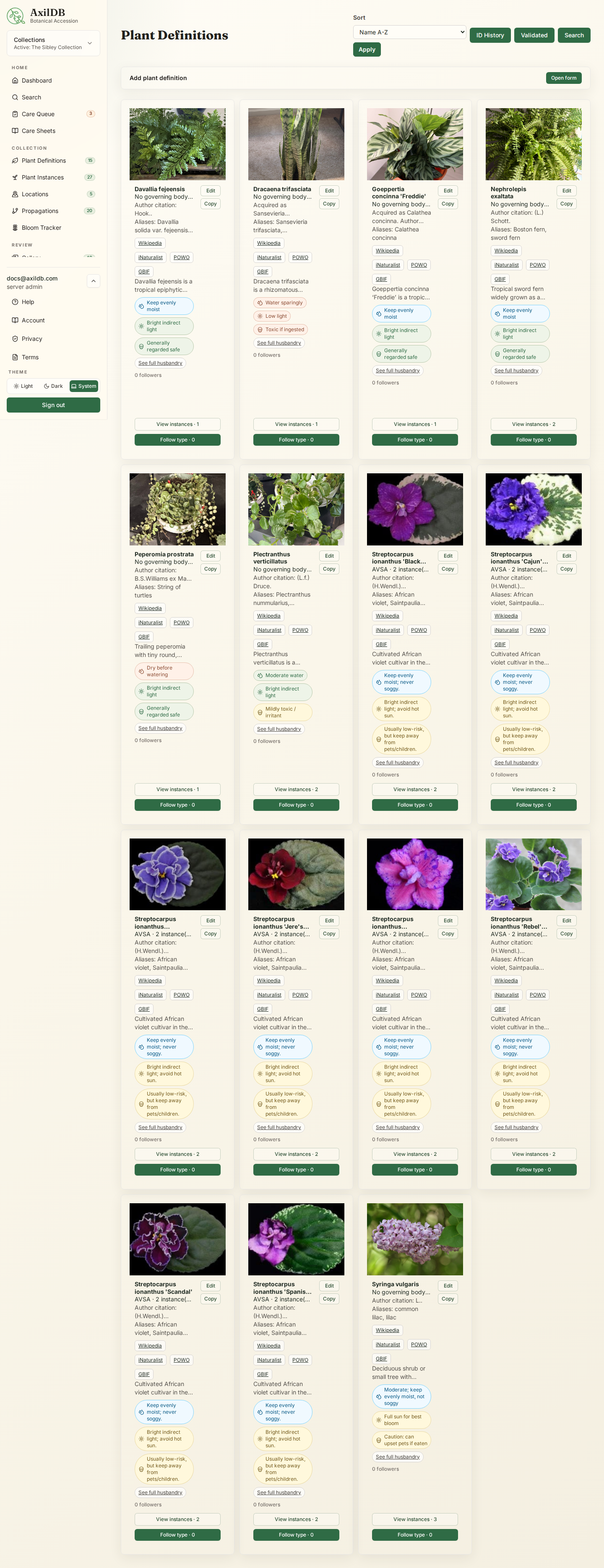
npm run docs:screenshots against a running app to populate this image.Plant Instances
Plant instances are the actual specimens in a collection. Each instance receives a generated plant ID, status, structured location, acquisition details, source, notes, photos, bloom records, propagation relationships, sport review, care history, reminders, follows, and a Plant Health Timeline.
How it is used
- Open Plant Instances and choose Add plant instance.
- Select a plant definition and enter specimen details such as type, acquisition label, acquisition date, structured location, legacy location text, source, distributor, stock number, and notes.
- Open a specimen detail page to review identity, photos, Plant Health Timeline, husbandry summary, sport status, follows, children, notes, reminders, bloom tracker, and archive actions.
- Use the Plant Health Timeline to scan accession, propagation, care, condition, bloom, photo, note, reminder, archive, and sport activity in a compact strip, then open the Life Story list for grouped deterministic history.
- Use the generated QR label to open the specimen record quickly from a printed label.
- Give sunshine to plant instances as a quiet appreciation/bookmark marker, then use Most sunshine or Least sunshine sorting when reviewing instance lists.
- Use the plant ID refresh action when the current ID no longer matches the generated ID format after type or date changes.
- Use Green Thumb assist for one focused care question per specimen per day when AI is enabled for the collection.
- Filter the instance list by structured location, with optional inclusion of child locations.
- Filter instances by a Plant Tag inherited from their linked definition; specimen cards and plant ID previews show a compact inherited tag row.
- Review quarantine status from the specimen page. Gardeners can start, update, release, or cancel quarantine records manually.
Notes
- Plant IDs are generated from the plant definition and relevant date context, then made unique inside the collection.
- Plant ID links in briefings, care lists, location views, recent activity, and related-specimen sections show compact hover/focus previews with a thumbnail and key status. On touch screens, tap once to preview and use Open plant inside the card to navigate.
- Structured locations show stable codes and breadcrumb paths. Legacy freeform location text is preserved for audit and migration context.
- Active quarantine records show on specimen pages and plant cards, and their target release dates create care queue review items.
- Acquired propagation is for purchased or received cuttings, leaf props, starter plugs, and similar plants without an internal parent record.
- Timeline v1 uses existing records and includes plant location moves plus quarantine start, update, release, and cancellation events. Dedicated label-change, restore, and sport-transition events are future data-source candidates.
Locations
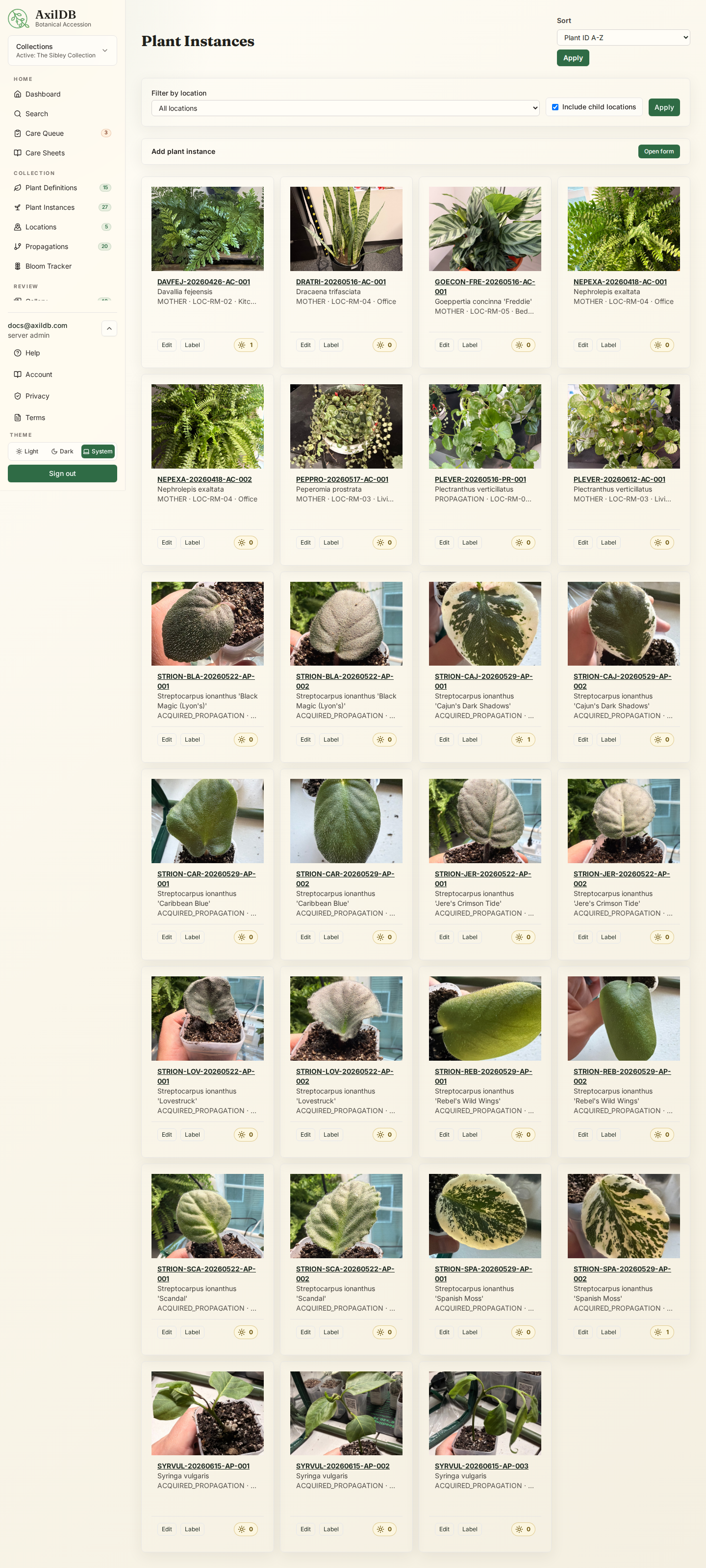
Locations map rooms, cabinets, shelves, greenhouses, benches, and other spaces as a collection-scoped hierarchy.
How it is used
- Open Locations from the sidebar.
- Managers can create location types such as Room, Cabinet, Shelf, or Greenhouse.
- Managers can create locations from Locations or plant forms, choose a parent location, edit the hierarchy, drag/reorder/reparent locations, and archive empty locations.
- Managers can regenerate a location code after changing the location type when the current code no longer matches the type abbreviation.
- Gardeners can move plants between existing active locations one at a time, drag plants onto locations, or use batch move preview for direct-only or direct-plus-nested moves.
- Open a location detail page to see parent location, breadcrumbs, child locations, direct plants, and nested plants separately.
- Open Environment on a location to review effective inherited conditions. Managers can add local temperature, humidity, light, photoperiod, airflow, stability, equipment, and measurement details.
- Add structured environmental requirements to a plant definition husbandry guide. A specimen can override only the values that differ.
- Review the advisory compatibility panel while planning an acquisition, viewing a specimen, or moving plants. Cautions do not block a move, but AxilDB asks for acknowledgment and records it.
- Use quarantine-type locations to group isolated plants, then start plant-level quarantine records from specimen pages.
- Use QR label actions to print location labels through the existing bulk label PDF workflow.
Notes
- Location codes are generated from the location type abbreviation and remain stable after creation.
- Location QR labels include the collection name, location name, code, type, and breadcrumb when space allows.
- Batch moves require preview and confirmation, then write one move-history row per plant.
- Blank environmental fields inherit from the nearest configured parent location. The effective profile always identifies whether a value is local or inherited and where it came from.
- Missing environmental or husbandry data is reported as Not enough information, never as a conflict. Measurements older than one year are marked stale.
- Compatibility is deterministic decision support, not an AI diagnosis or a guarantee. Seasonal changes and current measurements still need human judgment.
- Drag/drop is an enhancement. Dropdown and button controls remain available for mobile and keyboard workflows.
- Dragging a plant into a quarantine-type location prompts to start quarantine, move only, or cancel; it does not automatically create a quarantine record.
- The migration creates top-level Legacy Location records from distinct old freeform location strings.
Warnings
- Archived locations cannot be selected for new plant moves.
- Move plants and child locations before archiving a location.
Photos and Gallery
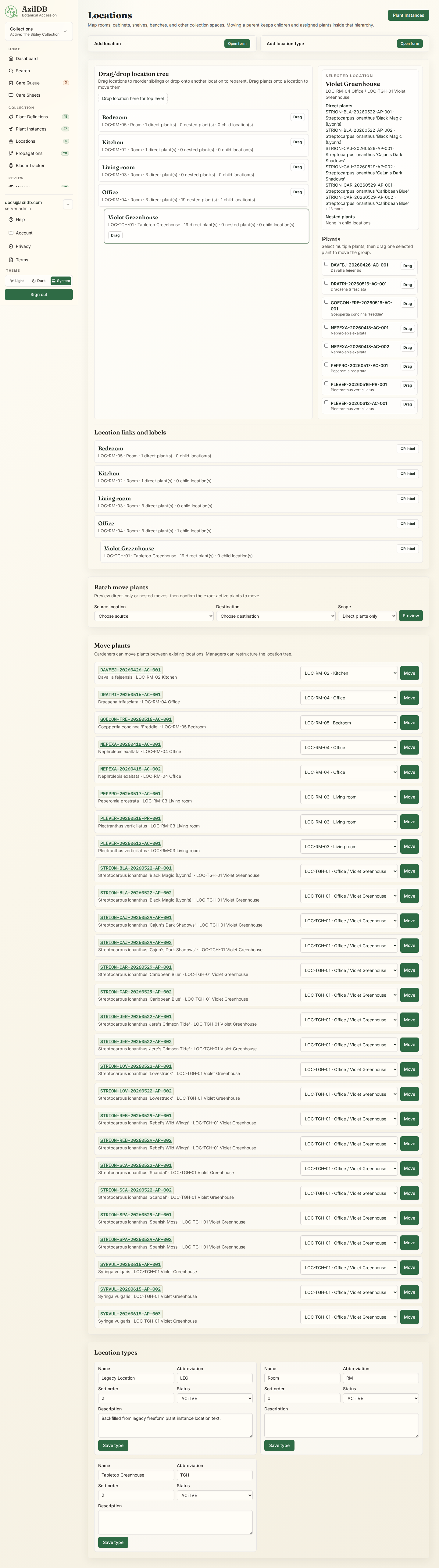
Photos provide visual evidence for specimens, blooms, and plant definitions. The gallery provides a collection-wide browser with full-screen viewing, while background moderation keeps unsafe uploads away from public and normal member views.
How it is used
- Upload specimen photos from a plant instance detail page.
- Set a specimen cover photo to control list/card presentation.
- Set a specimen photo as type photo when it should represent the plant definition.
- Upload plant definition type images directly when the best representative image comes from a trusted reference source.
- Upload bloom photos from bloom records.
- Use Gallery to browse specimen, bloom, and definition images and open larger versions.
- Use photo framing controls to crop or set a center-bias point for card and preview layouts.
Notes
- Uploads are resized to a maximum dimension to reduce storage use while preserving useful detail.
- Framing metadata is used by cards and previews so important plant details stay centered.
- Source and source URL fields help document reference images used for plant definition type images.
- When image moderation is enabled, uploads complete immediately and a background worker checks them in two layers: OpenAI Moderation for unsafe content first, then a plant-content vision check only if the safety layer passes.
- If you leave a photo caption blank, the plant-content vision check may add a short AI caption from the same analysis response. Captions you enter yourself are preserved exactly.
- Unsafe images are censored from normal users and public visitors until a server admin reviews them. Images with no detected plant content create an Account review item; uncertain plant-content images ask the uploader, “We’re not sure this image contains a plant. Continue anyway?”
- Server admins review censored images from Server Management. Uploader-facing review items remain collection-scoped and do not expose unrelated users or collections.
Warnings
- Only use images you have rights to use. Record image source details when importing reference images.
- Image moderation sends the uploaded image and minimal classification/check prompts to OpenAI. It does not send user emails, membership data, unrelated collection records, or saved specimen history.
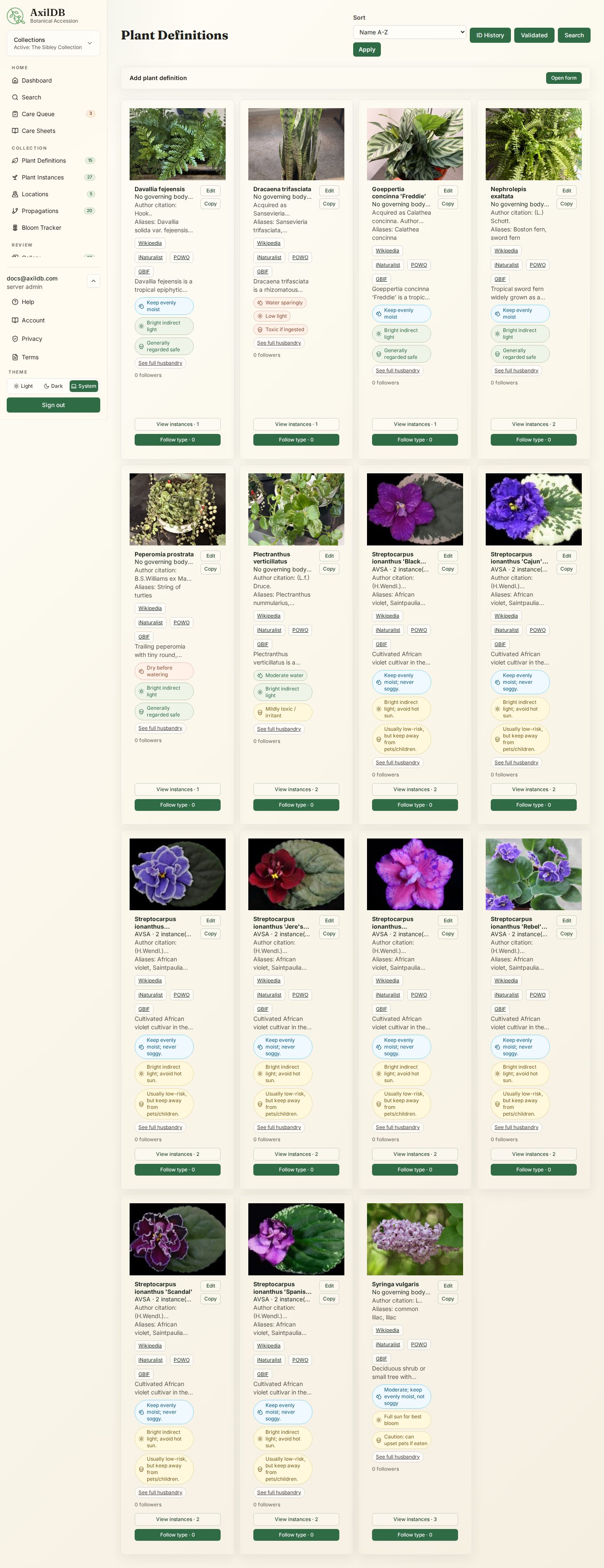
Plant Husbandry
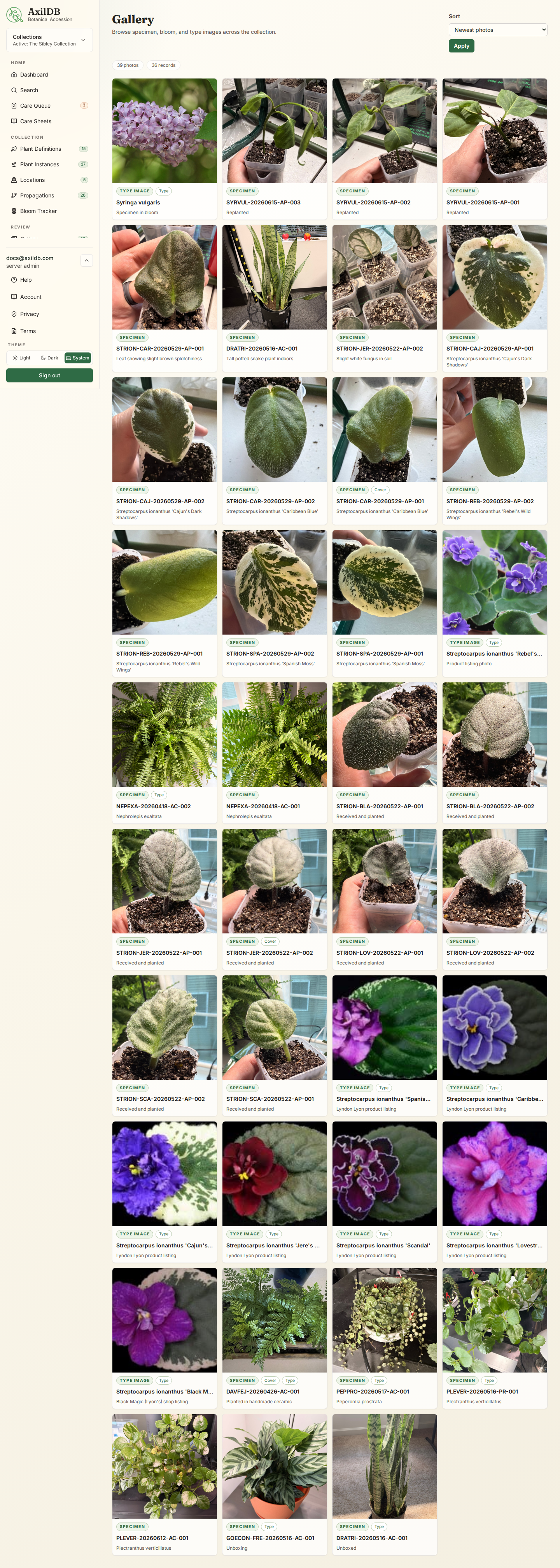
Husbandry guides capture care guidance for plant definitions and allow specimen-specific local overrides where one plant needs special treatment.
How it is used
- Open a plant definition and use the Husbandry panel to create, link, fork, edit, or delete a guide.
- Use Magic Fill husbandry to draft the structured care guide with one AI call when AI is enabled. Existing guide data triggers the shared Fill Missing Only / Replace All Fields choice, and generated husbandry is previewed before you explicitly save it.
- Edit individual husbandry fields inline with the edit controls next to each field instead of working through one large form.
- Use Fertilizers from the Admin sidebar to define collection-scoped fertilizer products and recipes, then assign a recipe and cadence from the plant definition husbandry panel.
- On fertilizer products, record structured guaranteed-analysis percentages for NPK, secondary nutrients, and micronutrients. Use guaranteed-analysis notes for chelated forms, unusual nutrients, or label text that does not fit a numeric field.
- Record manufacturer feed rate on the product, then use recipe dilution/strength fields for the collection’s actual mix. Product label rate and recipe strength are intentionally separate.
- Link a definition to another definition’s guide when care is identical, or make a local copy when it diverges.
- On a specimen detail page, use override controls next to inherited husbandry values for local adjustments, including specimen-level fertilizer recipe, cadence, or disabled fertilizing.
Notes
- Quick summary fields are standardized for consistent water, light, and toxicity badges.
- Summary badges use standardized colors and icons for watering, light, and toxicity.
- Full guides are grouped by care sections so future care sheets can include only selected topics.
- Magic Fill product data can draft guaranteed analysis, label feed rate, source URL/name, and confidence from public product-label or manufacturer information. If managed fields are populated, choose whether to fill only blanks or replace the managed fields. It does not save automatically; apply the draft, review it, then save.
- Magic Fill husbandry can recommend an existing active fertilizer recipe or queue a new fertilizer recipe draft, but the recommendation is not applied until you choose it and save.
Warnings
- Husbandry is collection-local in this version. Linked guides cannot cross collections.
Substrates and Potting History
The Substrate Library keeps reusable components, versioned recipes, plant recommendations, current specimen substrate, and repotting history together without treating substrate as inventory.
How it is used
- Open Substrates from the collection sidebar to browse the starter component and recipe library, create local records, and review usage.
- Use the shared color-and-pattern composition bars to scan recipes, then open Compare recipe versions to review two to four formulations side by side.
- Build a recipe draft by percentage by volume. The component total must equal exactly 100% before the version can be activated.
- Edit a component to choose its color, pattern, short label, and visual family, or reset it to its deterministic default visual.
- Create a new version when a formulation changes. Activated and historical versions remain read-only so existing plant and care records keep their exact formulation.
- On a Plant Definition, rank one or more recipe versions as Preferred, Recommended, Acceptable, or Special purpose.
- On a Plant Instance, record the current recipe version or choose Received Substrate, Custom / Unknown Mix, No Substrate, or Unknown. Each change adds a history entry.
- Use Bulk care by location for a reviewed multi-plant repot. Plants with a parseable husbandry repotting interval also receive derived Repot tasks in the Care Queue.
- Use the recipe and plant-history CSV exports for formulation and Received Substrate review.
Notes
- Each collection has its own library. Starter records can be archived or extended without changing another collection.
- Patterns supplement color across recipe, plant, search, Care Queue, and Magic Fill views and remain useful in monochrome print.
- Visual identity is presentation metadata. Editing it does not create a recipe version or change historical formulation data.
- Acquired plants default to Received Substrate when the exact seller mix is unknown.
- Magic Fill husbandry can suggest ranked existing recipes or prepare a new recipe draft, but it never assigns or activates one automatically.
- Green Thumb may consider current substrate, recent changes, and recommendations as context. It treats correlations cautiously and does not diagnose solely from substrate.
Warnings
- Recipe percentages are horticultural formulation records, not inventory quantities or exact chemical calculations.
- Published recipe versions are immutable. Correct or refine them with a new version.
npm run docs:screenshots against a running app to populate this image.Care Queue and Green Thumb
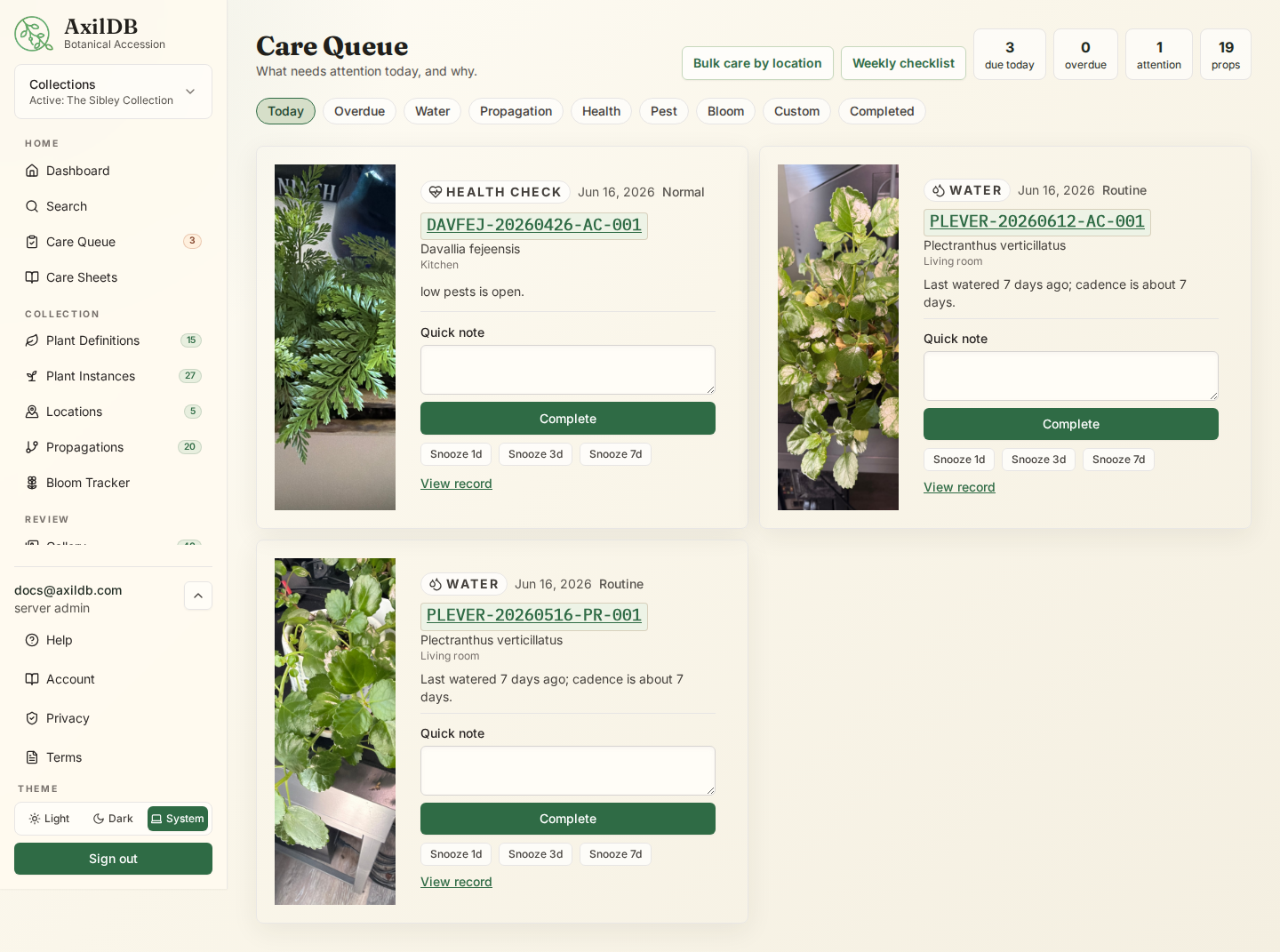
The Care Queue answers “what needs attention today, and why?” by combining husbandry guidance, watering history, propagation stage, open conditions, bloom follow-ups, pest checks, and manual reminders.
How it is used
- Open Care Queue from the sidebar to review today’s tasks, overdue work, watering, fertilizing, repotting, treatment plan steps, propagation checks, health issues, pest checks, bloom follow-ups, custom reminders, and completed care.
- Expand a repot task to compare the current substrate with the top-ranked recommendation, then record the new recipe or explicit non-recipe substrate state when completing it.
- Complete or snooze generated care tasks from the queue.
- For condition-related queue items, use the condition actions to resolve the condition, update severity/status/follow-up details, or mark that it still needs attention with a follow-up date.
- Use Bulk care by location to record one care event per selected plant in a location, with direct-only or nested-location scope and a required review step before submit. Fertilizing bulk care can include a recipe, strength, dose, and water volume.
- Open Bulk care from a location detail page when you want the location preselected.
- Use Care Schedule Sync from the Care Queue, Plant Instances, or a location detail page to align selected plants and care types, including fertilizing, to a new next-due date without recording completed care. Optionally sync cadence days at the same time when a group should share the same interval.
- Use per-plant overrides for individual notes, results, or skip reasons while keeping shared task details on the batch.
- Open Weekly checklist to group overdue, due, and upcoming care by location for a printable work session.
- Open a specimen to log watering, add conditions such as wilting or pests, resolve conditions, and review recent care history.
- Use Green Thumb assist on a specimen to ask one concise care question per day with plant identity, husbandry, recent care history, relevant saved collection treatments, aggregate local outcomes, and optional photo context.
- Delete a Green Thumb care note if the response was not useful.
Notes
- Generated care tasks are dynamic; completed care is stored as care events.
- Condition actions update the linked condition record and add care-event history. Ordinary care completion does not silently resolve an open condition.
- Bulk care completes only matching due or overdue care queue items for the selected plants; unrelated queue items are left alone.
- Care Schedule Sync changes future scheduling only. By default it aligns next-due dates; when Sync cadence as well is selected, it also writes a cadence override for the selected care types. It creates an auditable batch and item record, but it does not create care events or remove historical care.
- Collection managers can define Quiet Days from Collection Settings. The Care Queue and Care Schedule Sync shift affected due dates earlier, later, or by smart defaults according to per-care-type rules.
- Manual reminders continue to send email and are also merged into the queue when due.
- Green Thumb requests are limited per specimen and per collection to control AI usage.
Warnings
- Green Thumb responses are care suggestions, not guaranteed diagnoses. Review the plant directly before treating pests, disease, toxicity, or severe decline.
Treatment Management
Treatment Management keeps reusable treatment instructions, physical products, safety requirements, plans, actual applications, and observed outcomes together without replacing product labels or professional guidance.
How it is used
- Gardeners and managers can open Treatments from the Admin sidebar to create collection-scoped treatments and products, set applicable condition types, link products, and record deterministic safety details.
- Start a treatment plan from Treatment Management, Care Queue condition actions, Green Thumb, or an open condition on a specimen. Choose generated dates or review a custom step draft before starting. Active steps can be edited, added, or skipped with a reason; photo steps require an uploaded image, and quarantine steps update the specimen quarantine record.
- Loggers and above can continue due treatment steps from the Care Queue. Application steps require actual amount, unit, water volume, strength, method, product, notes, and safety acknowledgement where warnings apply.
- Use Record one-off treatment when an application does not need a plan. Link it to an open condition when applicable.
- Use Batch application to filter active specimens by location and descendants, condition, severity, quarantine, or search. Shared values can be overridden per specimen. AxilDB rechecks every selection, stores warnings per application, prevents duplicate submission, and completes a matching pending plan step when one exists.
- Record one or more follow-up outcomes for each application, then complete the plan with a final condition outcome and effectiveness rating after all required steps are complete.
- Closing a plan includes a linked-condition review. Resolve it, retain it with an updated severity and follow-up, and optionally create a reminder. Completed plans can be duplicated or amended with a required reason.
- Review plans and application history from each specimen. Treatment events also appear on the Plant Health Timeline.
- Use Treatment reports for usage, active work, adverse reactions, conservative outcome summaries, and CSV export with explicit units. Small samples are labeled and percentages are withheld until the sample is large enough.
Notes
- Treatment defaults are reference values only. AxilDB stores actual application values separately and snapshots the treatment instructions and safety details so later library edits do not rewrite history.
- Care Queue treatment items point back to their plan and do not masquerade as ordinary one-click care completion.
- Treatment definitions used by active plans require explicit confirmation before archival. Existing plans and historical snapshots remain intact.
- Treatment library, plan, application, report, and search data is available only to authenticated collection members; public collection pages do not expose internal treatment records.
- Effectiveness labels summarize the collection’s completed plans and adverse-reaction records. They are descriptive local history, not scientific evidence.
- Green Thumb receives only relevant active treatment metadata and aggregate local outcomes. It may point to saved options, but it never applies or schedules a treatment automatically.
- Library changes, plan lifecycle changes, applications, and outcomes produce collection audit and domain-event history.
Warnings
- Always verify the current product label, local regulations, compatibility, dose, PPE, ventilation, environmental conditions, and re-entry interval before application.
- Minimum-interval, quarantine, bloom, indoor-use, ventilation, and plant-tag cautions are deterministic prompts. They do not guarantee safety or suitability.
- Application and outcome records are historical. Correct mistakes with an explicit correction note rather than silently treating old records as current instructions.
npm run docs:screenshots against a running app to populate this image.Greenhouse Workflows
Greenhouse Workflows let collections define repeatable operating procedures such as new-arrival quarantine, weekly greenhouse rounds, pest response, seasonal moves, bloom reviews, and propagation checks.
How it is used
- Open Workflows from the sidebar.
- Use starter templates as-is, copy them into editable collection-local templates, or create a custom template. Starter templates stay read-only so they remain stable.
- Managers can drag steps into order, use keyboard move controls, choose typed step functions, mark steps required or optional, and store future trigger notes while triggers remain disabled.
- Start a manual workflow run from Workflows, the Dashboard launchpad, Care Queue, the plant list selection bar, a location detail page, quarantine context, or a specimen detail page.
- Scope a run to the whole collection, one location with child locations included by default, or selected plants, and optionally assign the whole run to a user.
- Complete steps from the run page. Typed steps can create care events, notes, reminders, photo records, location moves, quarantine records, quarantine releases, and condition records.
- Complete or cancel the run once the required steps are handled.
Notes
- Workflow runs snapshot their template steps when started, so later template edits do not rewrite run history.
- Workflow-created records appear in normal AxilDB history, including Plant Health Timeline where relevant.
- Photo steps upload through the existing photo pipeline and complete the step after linking the photo to the selected plant, location, or collection.
- Workflow-created care events clear matching due care queue items and reminders where appropriate.
- Unused custom templates can be deleted. Templates with run history are archived instead so history remains intact.
- Trigger fields are stored for future automation, but v1 does not run workflows automatically.
Warnings
- Workflows are collection-internal. Viewers and public visitors cannot start or complete workflow runs.
- Moving plants or starting quarantine from a workflow still requires explicit step completion and selected targets.
npm run docs:screenshots against a running app to populate this image.Weekly Greenhouse Checklist
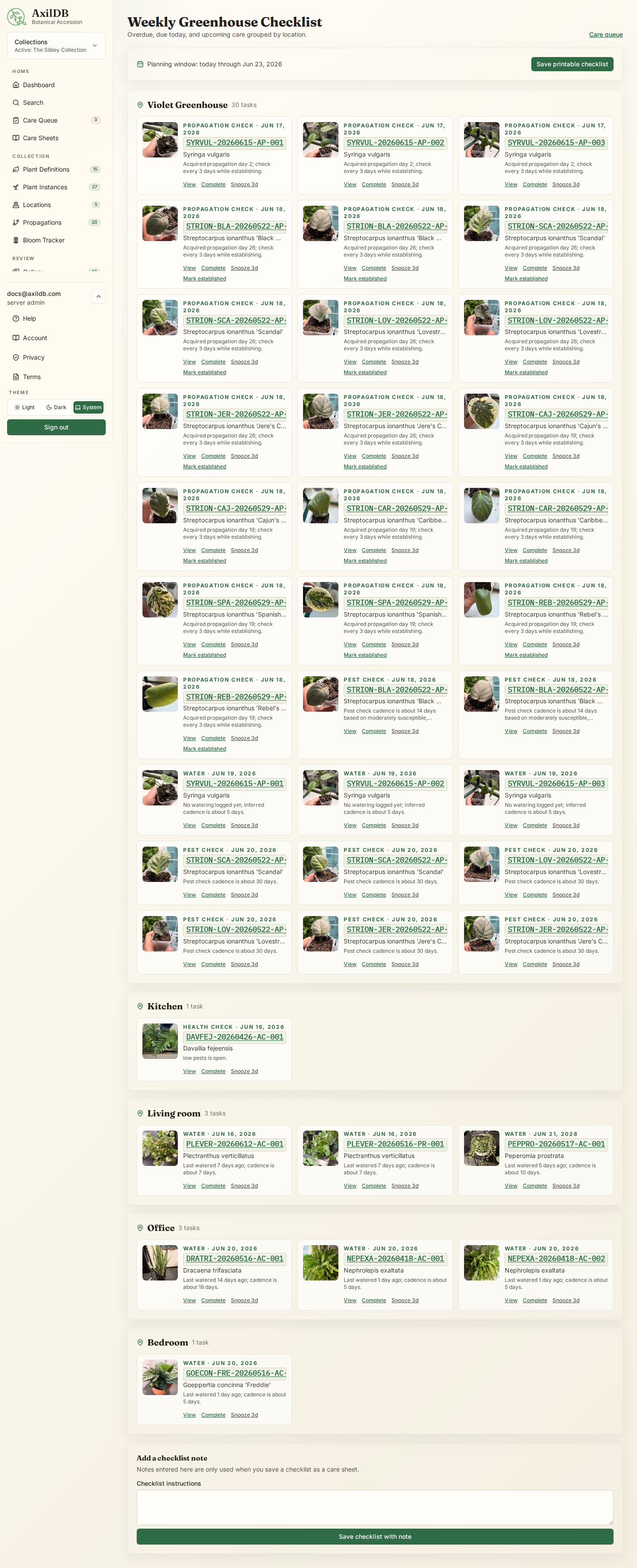
The Weekly Greenhouse Checklist turns due and upcoming care queue work into a location-grouped checklist for watering, pest checks, propagation follow-ups, bloom checks, health checks, and custom reminders.
How it is used
- Open Care Queue, then choose Weekly checklist.
- Review tasks grouped by location with photos, plant IDs, due dates, and reasons.
- Use View to open the plant record, Complete to log finished care, or Snooze to move a task forward.
- Save the checklist as a printable care sheet when you want a stable handout or PDF.
Notes
- The checklist uses the same care engine as Care Queue, so husbandry, local overrides, recent care events, open conditions, and acquired propagation age all affect what appears.
- Saved checklists can be found in Care Sheets.
Care Sheets and Plant Sitter Mode
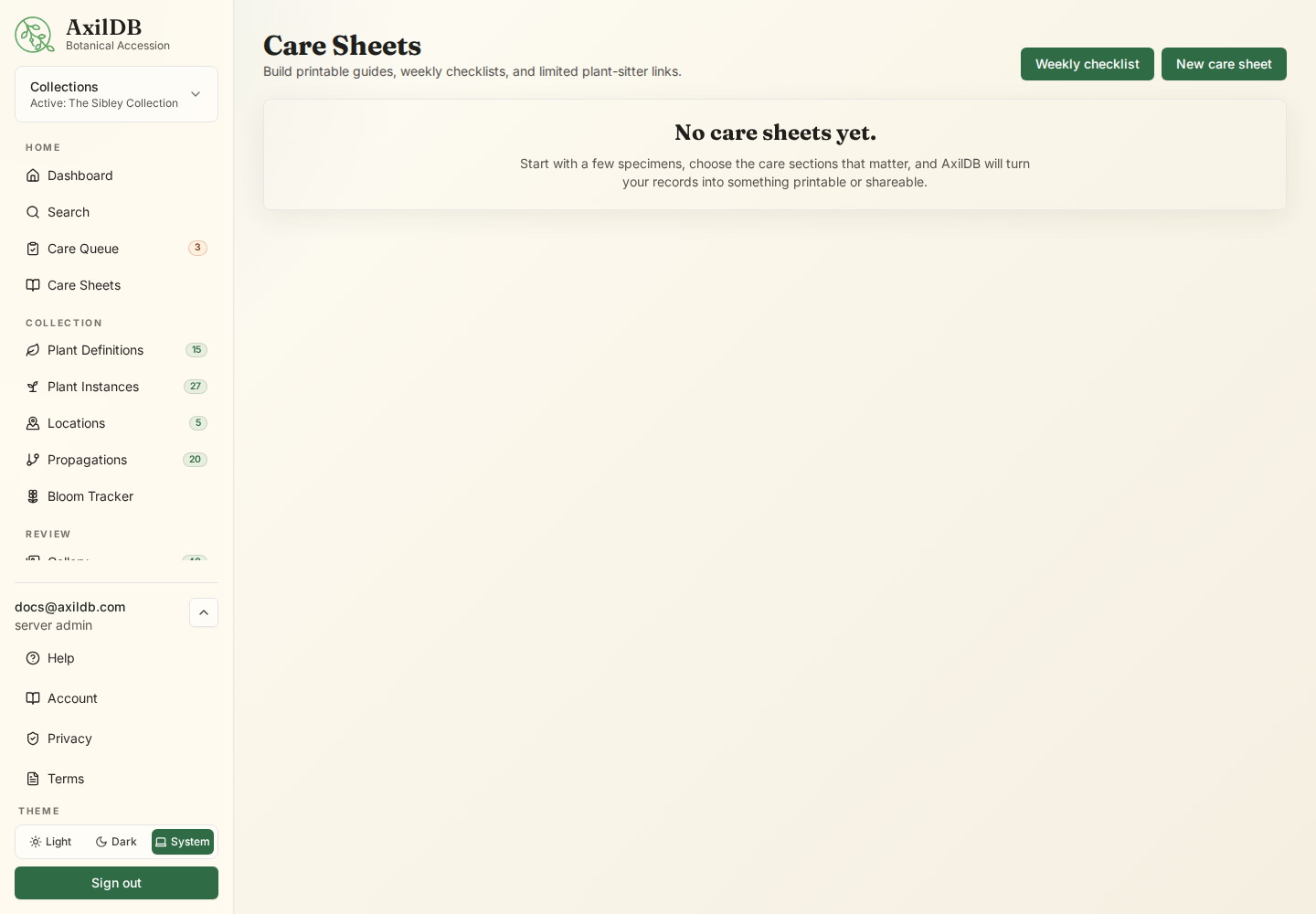
Care Sheets package selected specimens, husbandry sections, photos, quick badges, and tasks into printable guides, weekly checklists, or limited plant-sitter sessions.
How it is used
- Open Care Sheets from the sidebar.
- Create a new care sheet, weekly checklist, or plant sitter plan.
- Select specimens, choose husbandry sections, and set print or sitter-session options.
- Open a saved care sheet to review the web view, download the PDF, copy a tokenized sitter link, revoke access, or delete the sheet.
- Use plant sitter links when someone needs limited access to selected plants and tasks without a full account.
Notes
- Care sheets merge definition-level husbandry with plant-specific local overrides and mark local adjustments where they differ.
- Sitter links expose only the selected plants and tasks, expire automatically, and can be revoked.
- Deleting a care sheet removes that saved package; it does not delete the underlying plants, photos, husbandry, or care history.
Warnings
- Tokenized sitter links can expose selected private collection data to anyone who has the link until the token expires or is revoked.
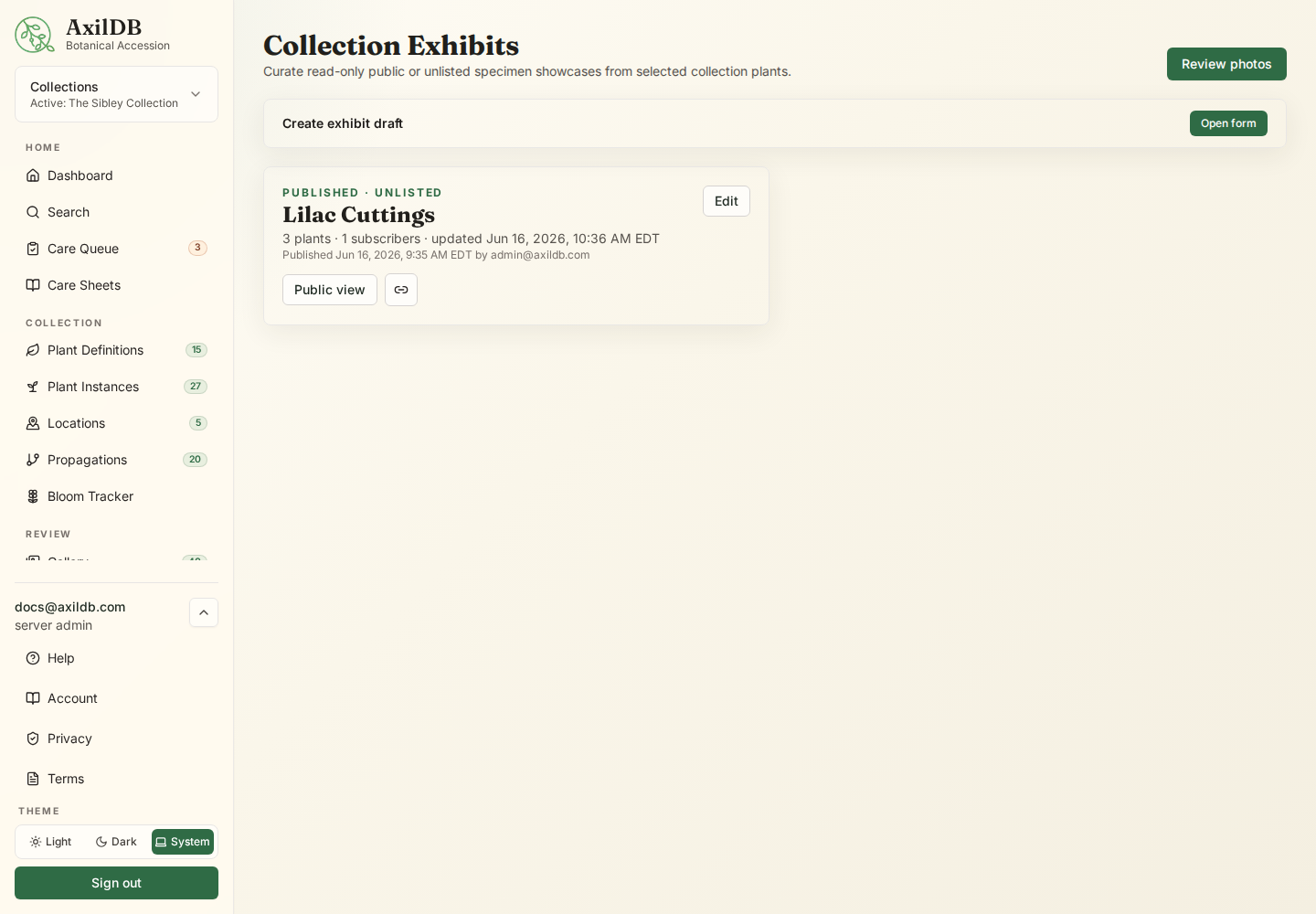
Collection Exhibits
Collection Exhibits are curated, read-only public or unlisted showcase pages made from selected specimens and grouped by plant definition.
How it is used
- Open Collection Exhibits from the Admin section of the sidebar.
- Gardeners can create draft exhibits, edit title/intro text, choose a cover photo, and control which public-safe sections appear.
- Use the Exhibit Builder to search, sort, or group available plants, then add specimens with the plus button or by dragging them into the Exhibit Plants pane.
- Drag Exhibit Plant cards to change presentation order. Featured stars, captions, add/remove actions, and ordering save automatically as you curate.
- Wishlist definitions can be selected separately for a Planned Acquisitions section. They have their own order, featured state, and caption and do not create or impersonate specimen records.
- Managers can publish or unpublish exhibits, copy/open the public share link, review subscriber totals and subscriber status, and send manual update emails.
- Guests can view a published exhibit without an account and can subscribe to updates by confirming a double opt-in email.
- Use Print / save PDF for browser printing or Download PDF for a generated botanical booklet-style PDF.
Notes
- Published exhibits can be public or unlisted. Unlisted links include a token and should be treated like share links.
- Sensitive specimen notes, care notes, and condition details are off by default and only appear when explicitly enabled in the exhibit editor.
- Images are filtered through public-safe moderation flags before display.
- Basics, visibility toggles, image mode, and update digest settings still use the Save exhibit button.
- Daily and weekly automatic update digests are sent by the scheduled reminders worker when public-safe selected changes are detected.
- Manual updates can include a detected-change summary since the last sent exhibit update.
- Enable Show Plant Tags when an exhibit should include them. Public exhibits include only active tags explicitly marked public by the collection.
Warnings
- A published exhibit can expose selected private collection data to anyone with the public or unlisted link until it is unpublished, revoked, or expired.
Propagations and Lineage Graphs
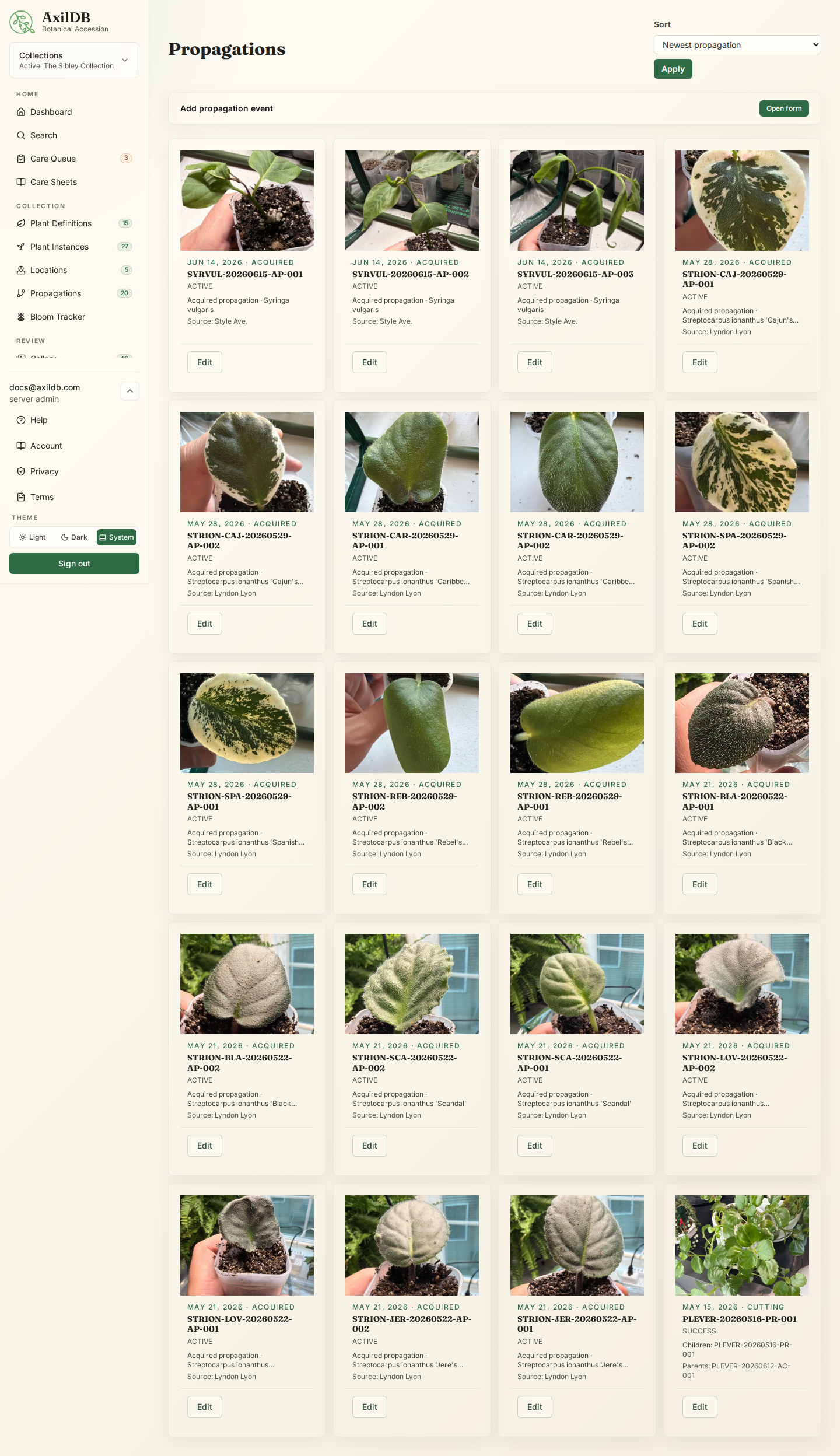
Propagation records connect parent specimens to child specimens and preserve the context for divisions, cuttings, leaves, rhizomes, sport lines, and other propagation methods.
How it is used
- Open Propagations and use Add propagation to record a propagation event.
- Select parent and child specimens, propagation method, date, status, and notes.
- Use Lineage Graphs to search for a specimen and view its connected tree.
- Select nodes in the graph to change focus and follow ancestry and descendants.
- Use Acquired propagation for starter plants or leaf props obtained from outside the collection.
Notes
- Lineage graph connectors use different styles for propagation methods where possible.
- Transferred specimens preserve relevant transfer notes, but cross-collection lineage links are not created.
Bloom Tracker
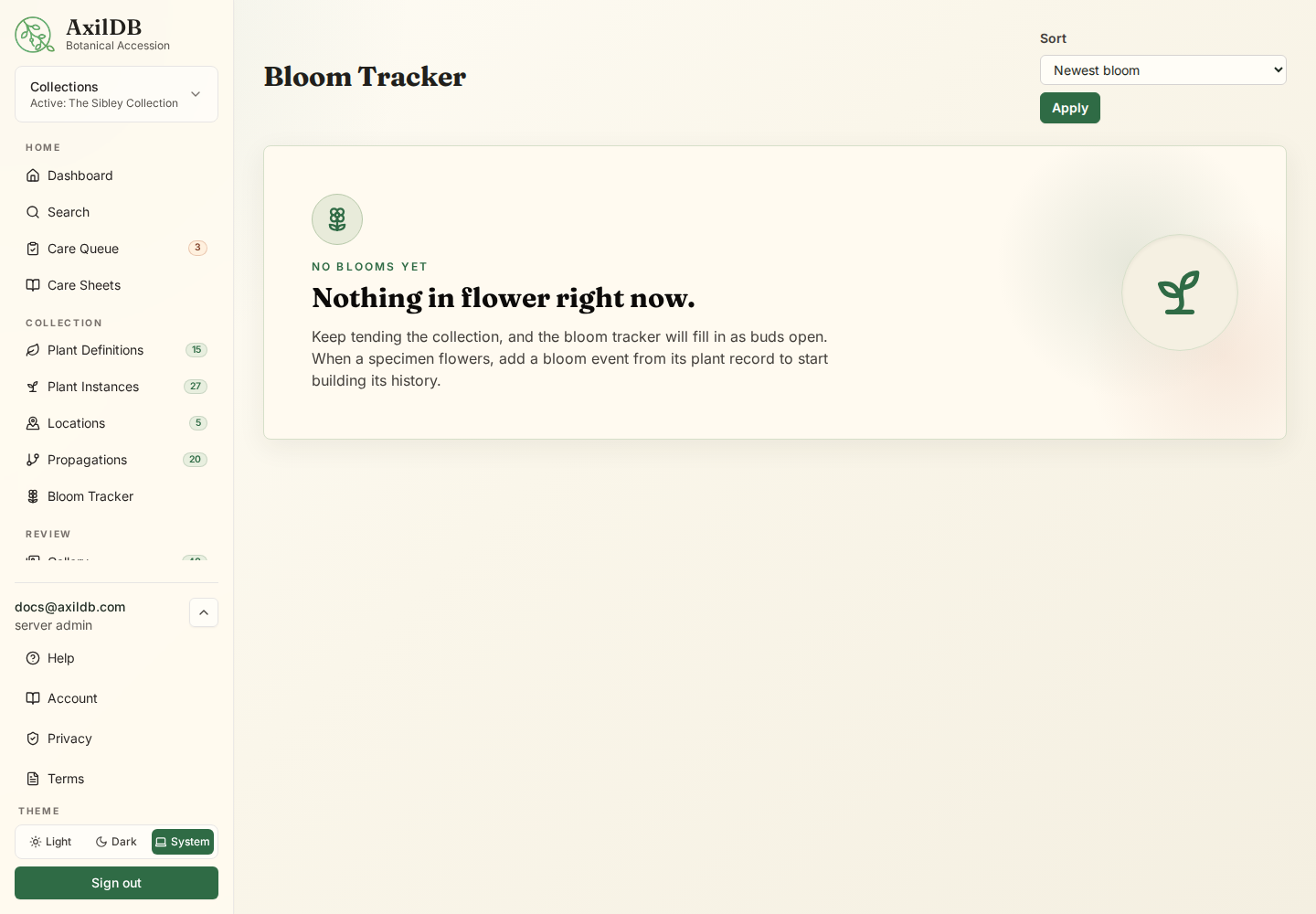
Bloom tracking records bloom starts, first bloom flags, peak dates, flower counts, closure dates, notes, and bloom photos.
How it is used
- Open a plant instance and use Bloom tracker to open a new bloom event.
- Later, update the bloom record with peak date, flower count, closure date, notes, and photos.
- Open Bloom Tracker from the sidebar to browse bloom events as cards.
Notes
- Bloom cards use selected bloom/specimen photos when available and placeholders otherwise.
- If a collection has no blooms yet, the Bloom Tracker shows an empty-state prompt instead of a blank page.
Sport Review
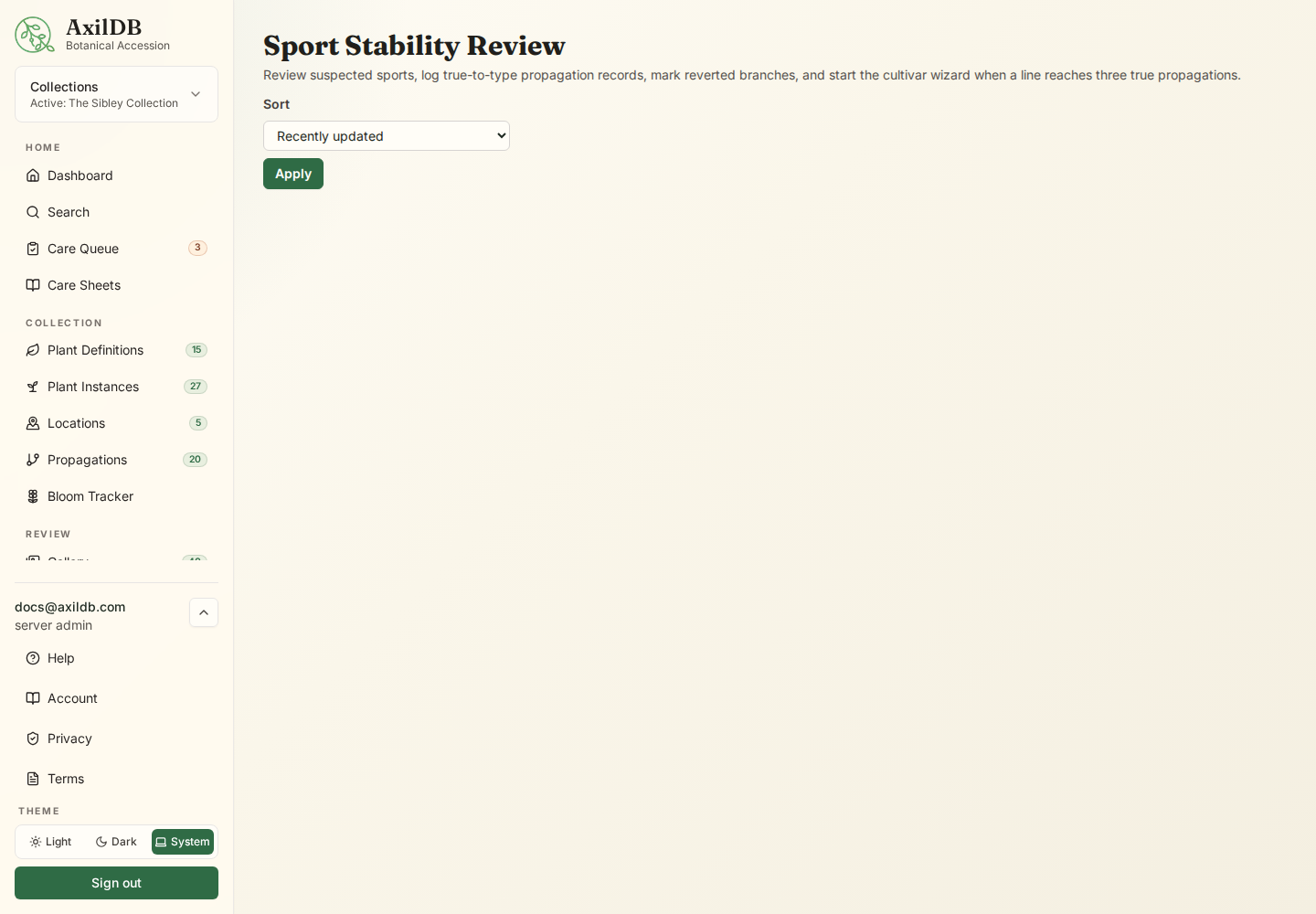
Sport review tracks suspected mutations, candidate sport lines, reverted specimens, and stable sport evidence through propagation generations.
How it is used
- Open a plant instance and use Sport / mutation when a plant appears different from its expected cultivar or species.
- Mark suspected sports with observation notes.
- Review candidate and suspected sports from Sport Review.
- Mark descendants as propagated true, reverted, or stable as evidence accumulates.
Notes
- Reverted status cancels a sport line for descendants that return to the original cultivar behavior.
- Stable sport workflows can create a new cultivar definition when evidence supports it.
Search, Follows, and Reminders
Search finds collection records, follows send email updates for records you care about, and reminders create scheduled plant check-ins or other tasks.
How it is used
- Use Search near the top of the sidebar to search plant IDs, names, aliases, locations, notes, sources, and husbandry text.
- Search by Plant Tag name or select several tags and choose Match any or Match all. Tag filtering remains scoped to the active collection.
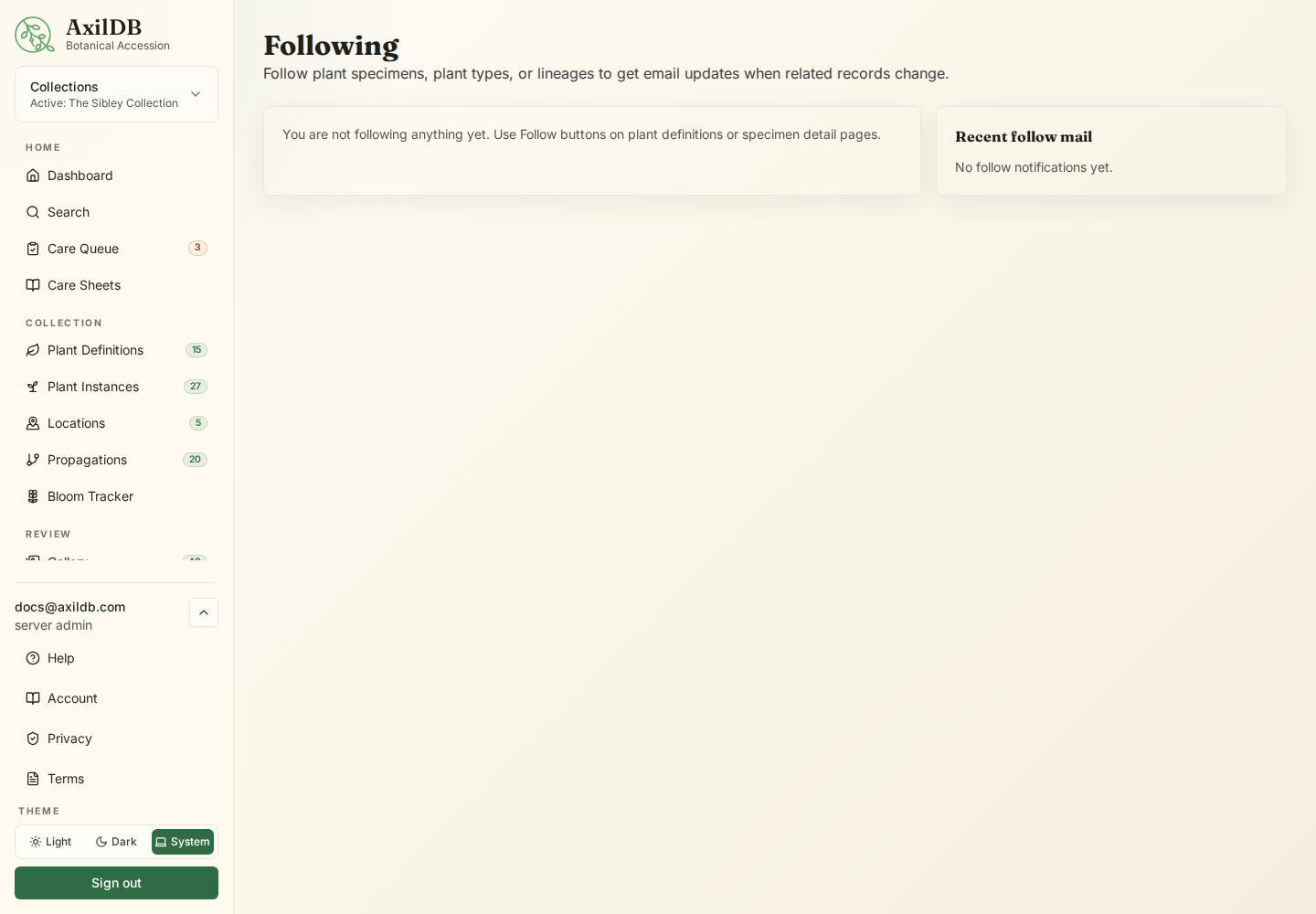
- Use Follow buttons on plant definitions, specimens, and lineage-related records to subscribe to updates.
- Create reminders from specimen pages or the Reminders section.
- Manage followed records from Following and reminder history from Reminders.
Notes
- Following requires active membership in the collection, even for public collections.
- Email links route back into the relevant collection and record after login.
QR Labels and Bulk Tags
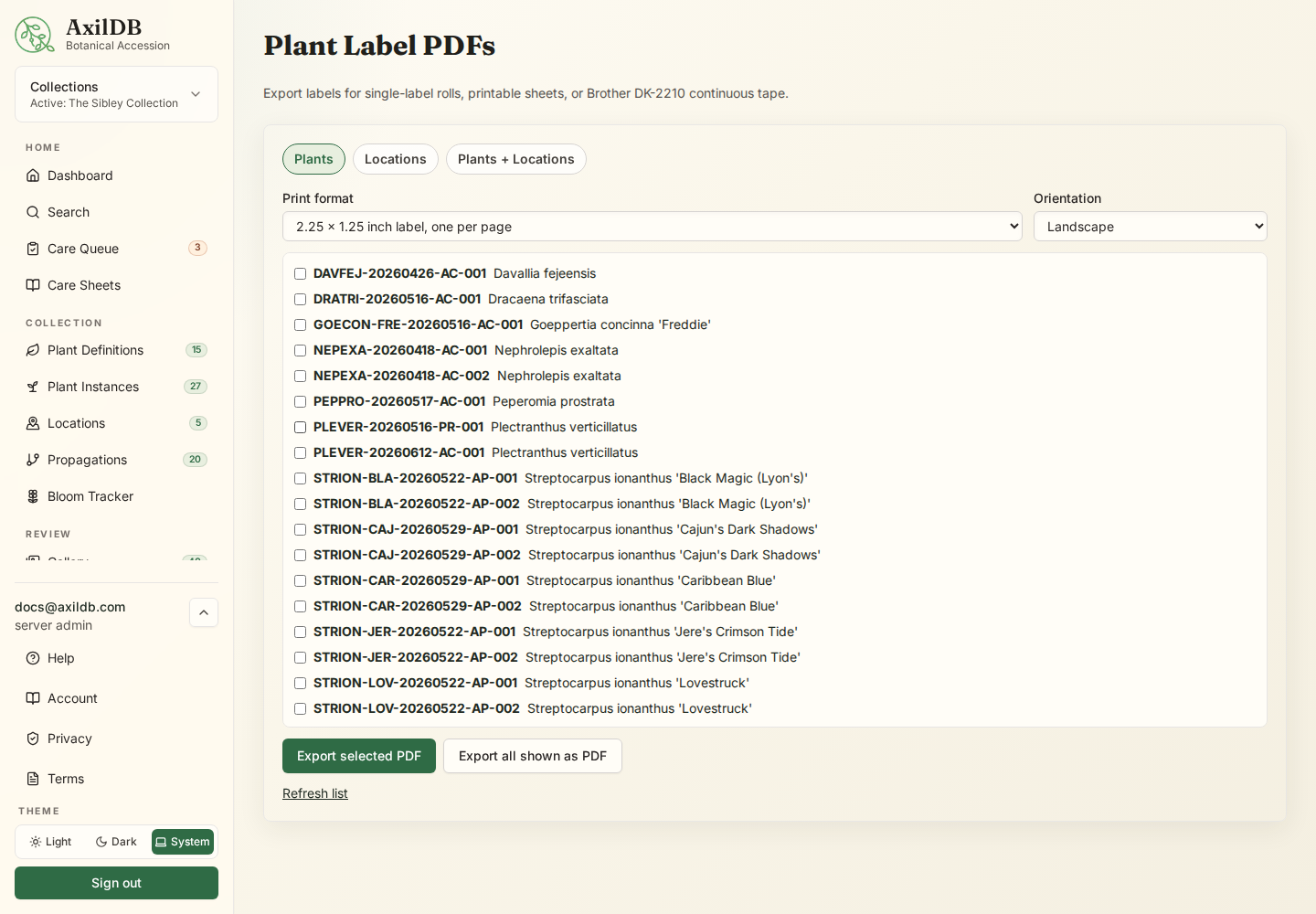
Labels generate printable QR codes and plant IDs for specimen tags.
How it is used
- Open Bulk Tags to choose plants, locations, or both for label export.
- Choose a label format: 2.25 × 1.25 inch single labels, a legacy ganged print sheet, or Brother DK-2210 continuous labels.
- Choose portrait or landscape orientation independently of the label format.
- Scan a plant label QR code to open the specimen detail page, or a location label QR code to open the location detail page.
Notes
- Plant labels show collection name, plant name, QR code, and plant ID. Location labels show collection name, location name, type, breadcrumb when space allows, QR code, and location code.
- Private collection labels require sign-in before showing the specimen record.
Collection Transfers and Definition Sharing
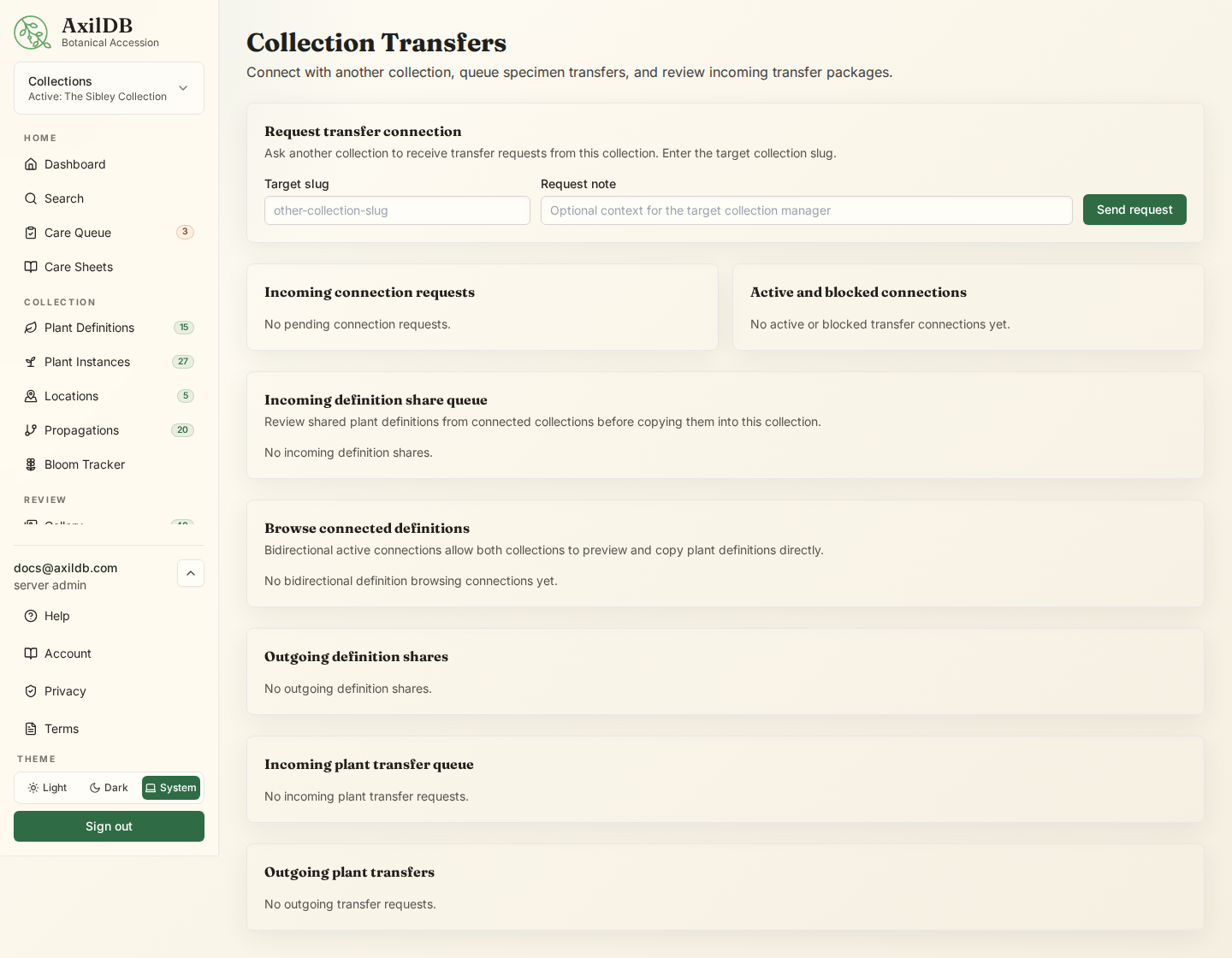
Transfers let connected collections share plant definitions and queue specimen transfers while preserving privacy boundaries.
How it is used
- Collection managers request a transfer connection by entering another collection slug.
- The target collection manager can allow, ignore, block, unblock, or remove the connection.
- Use Connect back to make a reciprocal connection when another collection has already connected to yours.
- Once a bidirectional connection exists, browse connected definitions and copy them into your collection.
- Use Share Definition from a plant definition to queue a specific definition for another connected collection.
- Gardeners and managers can request specimen transfers through active connections.
- Receivers review a summary, then accept or decline the transfer.
Notes
- Specimen transfers copy the package into the receiving collection and archive the source specimen after acceptance.
- Pre-acceptance previews show summary/count information rather than full private data.
- Connection and transfer events can send email alerts to the relevant collection managers.
Warnings
- Removing a transfer connection also removes pending transfer and definition-share requests attached to that connection.
Taxonomic Authorities, Collection Tools, and Audit Log
Taxonomic Authorities identify the registries, societies, institutions, and agencies responsible for naming or cultivar registration. Structured scope rules let AxilDB match plant definitions consistently.
How it is used
- Create an authority with its type and official website, registration, cultivar-search, membership, and external-directory links.
- Add structured scope rules. More specific ranks take precedence, so species beats genus, genus beats family, and family beats order.
- Add official publications and their purpose without copying registrar contact details that may become stale.
- Plant definitions use automatic matching by default. Choose an authority to create a durable manual override, or choose Continue without authority to dismiss the match without blocking save.
- Use Re-evaluate plant matches after changing scope. Manual overrides remain unchanged.
- Review diagnostics for unmatched or ambiguous definitions, manual overrides, missing scope rules, and malformed resource URLs.
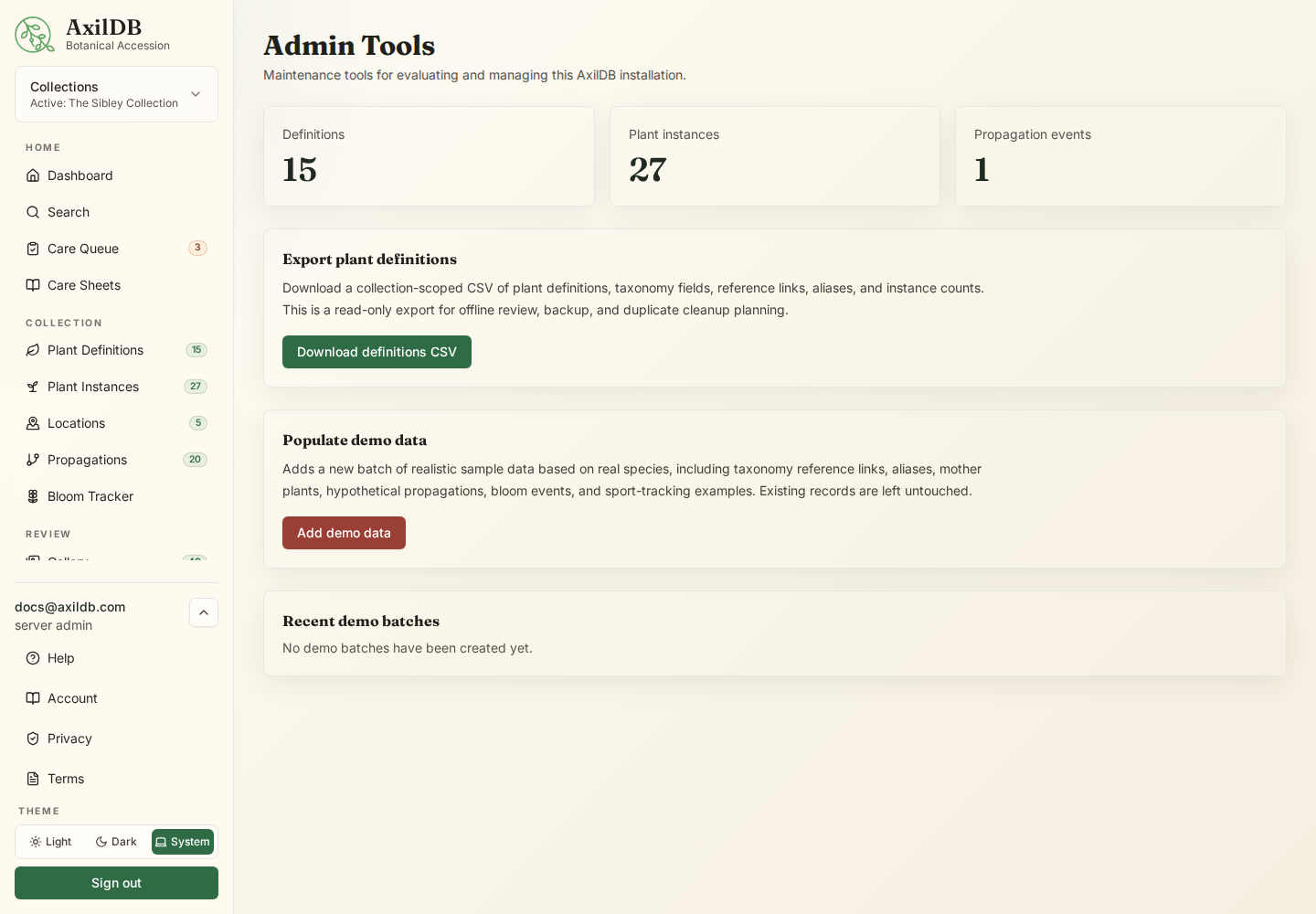
- Use Collection Tools to seed demo data, run collection maintenance helpers, and review collection-only utilities.
- Use Audit Log to review changes made inside the current collection.
Notes
- Magic Fill shows the likely scope match but does not create or assign authority records automatically.
- Shared imported authority records are read-only to collection managers. Official metadata can be refreshed later without replacing local overrides.
- No authority match is a valid state and never blocks saving a plant definition.
Warnings
- Demo data tools should be used intentionally. They create realistic sample records in the current collection.
- Authority links are references to official sources. Verify the current official record before relying on registration guidance.
Collection Activity and Historical Events
Collection Activity is the structured, collection-scoped history produced by the Unified Event Engine. Current plant, care, and workflow records remain authoritative; AxilDB is not event-sourced.
How it is used
- Open Collection Activity from the Dashboard to filter durable events by type, source, visibility, date, plant, actor, or correlation ID.
- Open an event to inspect its versioned summary and structured payload. Redacted payloads remain hidden while the immutable event envelope stays visible.
- Gardeners and managers can add a manual historical observation for a specimen. Choose the date, category, context, and visibility; the entry is always labeled Manual historical entry and does not change current plant state.
- Managers can record a correction from an event detail page. The original remains stored and links to the superseding correction.
Notes
- Plant Health Timeline and Dashboard activity prefer domain events for new activity and keep de-duplicated legacy history during migration.
- Reconstructed events come from trustworthy timestamps in existing records and are labeled Reconstructed.
- Event visibility is explicit. A public collection does not make collection-member or staff events public.
- Audit Log remains a separate record of security-sensitive and administrative actions.
Warnings
- Manual historical entries are observations only. Use normal edit and care workflows to change authoritative current state.
npm run docs:screenshots against a running app to populate this image.Server Management
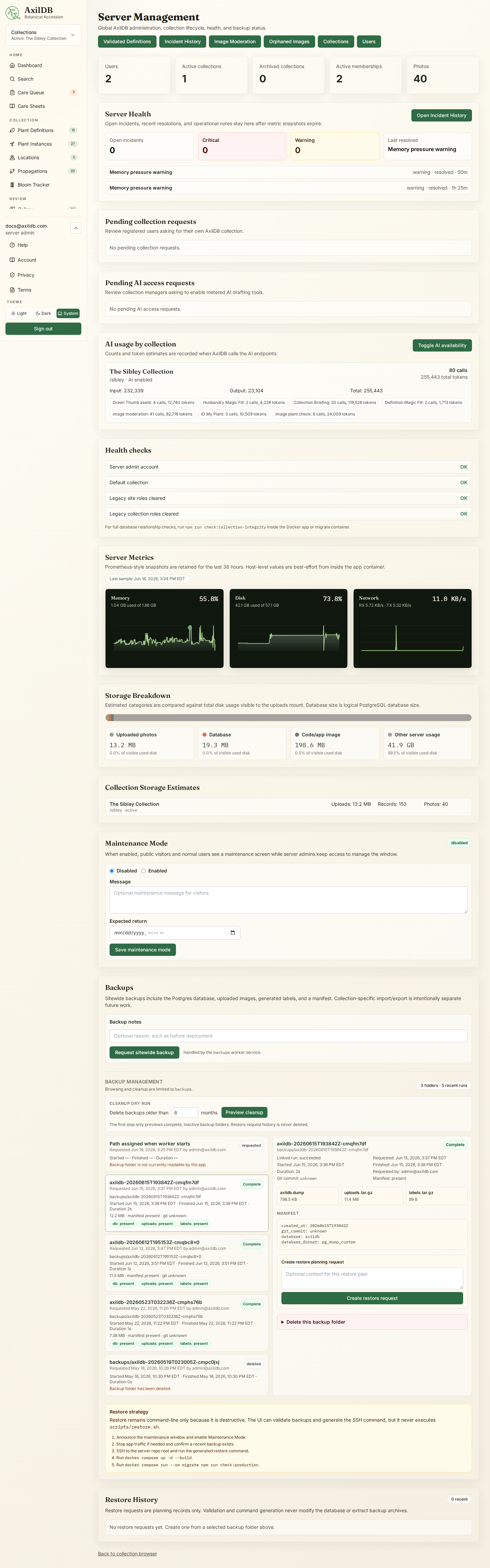
Server Management is restricted to server admins and covers sitewide users, collection creation and archival, validated definition review, image moderation, event processing, AI availability, AI access requests, collection requests, maintenance mode, backups, restore planning, health metrics, incident history, and usage statistics.
How it is used
- Open Server Management from the admin nav when signed in as a server admin.
- Review server health, open incidents, collection usage, AI usage, pending collection and AI access requests, backup status, and storage estimates.
- Use Site Users to manage global roles and collection memberships.
- Use Server Collections to create, archive, restore, or permanently delete collections.
- Use Validated Definitions to review nominations and disputes, edit approved site-level reference definitions, and preserve reusable taxonomy outside any one collection.
- Use Image Moderation to review censored uploads, override false alarms, remove images, or remove an image and block the uploader.
- Use Incident History to search/filter open or resolved incidents, inspect clustered memory/disk graph markers, create manual incidents, and attach notes or postmortem details.
- Use Event Processing to review pending, processing, failed, and dead-letter counts; inspect processing attempts and safe payload details; retry failures; or mark an event ignored with a required reason.
- Use Maintenance Mode before planned downtime so public visitors and normal users see a maintenance screen while server admins retain access.
- Use Backup Management to initiate sitewide backups, review recent runs and readable backup folders in one list, inspect manifests/artifact sizes/git commits, validate restore readiness, and generate the SSH-only restore command.
- Use backup deletion tools only when intentionally pruning server storage: individual deletion requires the exact folder name, and older-than cleanup starts with a dry-run preview before confirmation. Active and incomplete backups are skipped by default, and restore request history is retained.
- Use Restore History to document restore requests, validation results, generated commands, notes, and externally completed or cancelled restores. The web UI never executes a database or file restore.
- Use Orphaned Image Cleanup to scan uploaded image storage for files no longer referenced by database records, review the dry-run list, select files, and delete only after confirmation.
Notes
- Collection managers do not see the full site user list.
- Validated definitions are site-level records; they can be linked by collection specimens without making them collection-owned.
- Image moderation is two-layered when enabled: unsafe-content moderation runs before plant-content vision analysis.
- AI availability can be toggled per collection by server admins, and collection managers can request AI access.
- Incidents are durable operational records. Memory incidents open after three consecutive samples above warning or critical thresholds; disk incidents open on threshold crossing; metric incidents resolve automatically after three clear samples. Worker, SMTP, email backlog, AI, and moderation incidents are detected from durable worker/delivery records. Manual incidents remain until a server admin resolves them.
- Domain events are immutable domain history, while Audit Log remains the security and administrative accountability record. Server-admin redaction records a new redaction event and hides the original payload without silently rewriting it.
- Orphaned Image Cleanup only scans the upload image directory and re-checks database references immediately before deleting selected files.
- Backup manifests record deployment commit metadata from GIT_COMMIT, SOURCE_COMMIT, common provider commit variables, or git rev-parse when repository metadata is available.
Warnings
- Permanent collection deletion cascades collection-owned records. Archive first and verify backups before deleting.
- Do not treat image moderation as a substitute for human review when a censored upload is disputed or unclear.
- Back up before bulk orphaned-image deletion. Cleanup does not delete database records and does not touch labels, manuals, backups, or generated PDFs.